
Modding
Although the cards are set for Mod, I don't recommend modding unless you have some knowledge on how to modify objects.
MODDING the INNER of the CARD
The info below is on how to personalise the inside of the card, you should note that you will lose the current inner image the card came with, which you will replace with one you have made yourself with your personalised message.
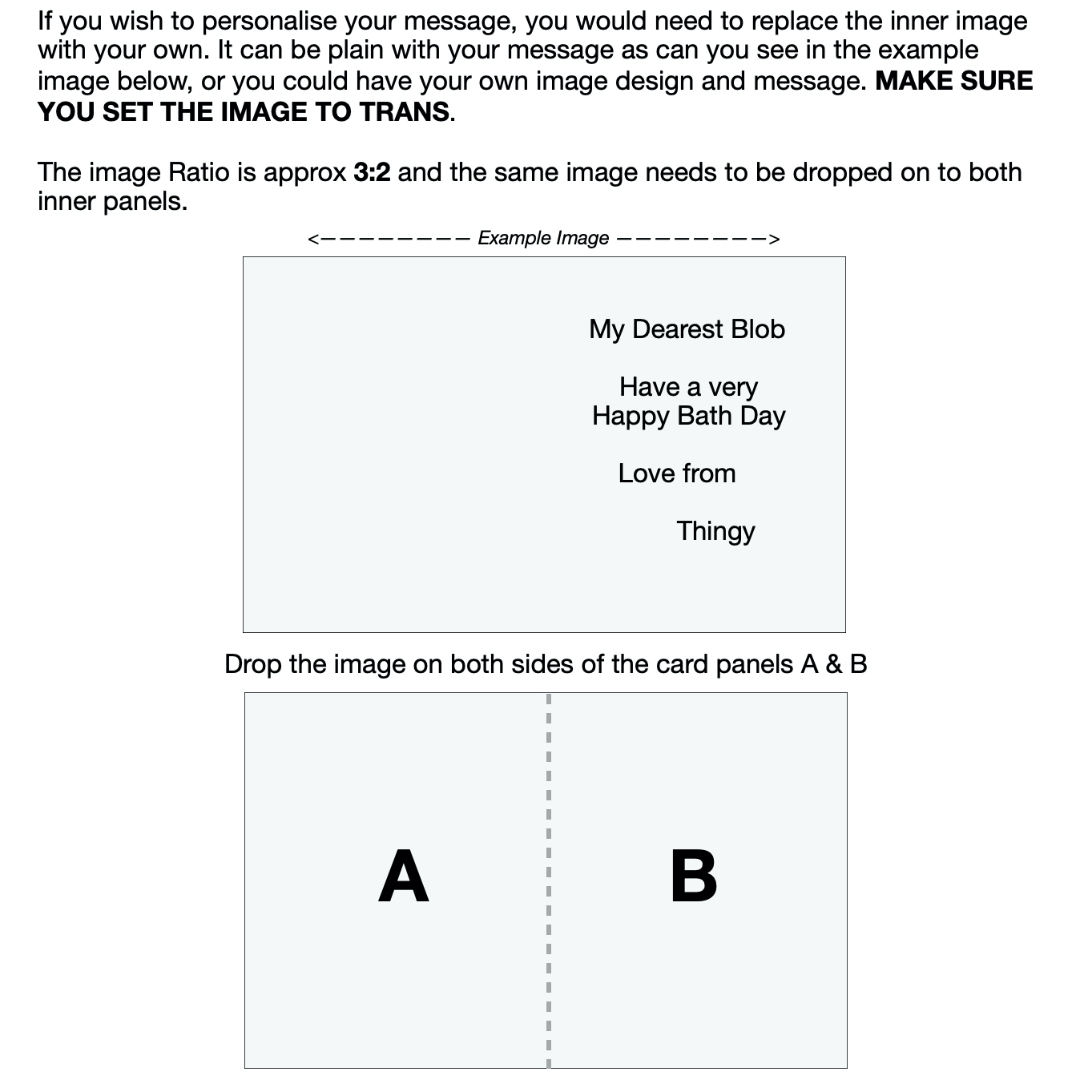
The inner card is split 50/50 with a ratio of 4:3.
The personalised message image will (traditionally) be on the right hand side of the card (Panel B).
The image should be spread across both panels A & B (see the How to Mod Inner Panels image), so your image should also take that in to account.
When you have uploaded your image, you will need to set the permissions to Trans (you can set mod/copy but it will not change the perms of the card itself).
You will then need to drag the image to both sides of the card (Panels A & B) and they will auto-magically be in the correct positions.
MODDING the FRONT PANEL of the CARD
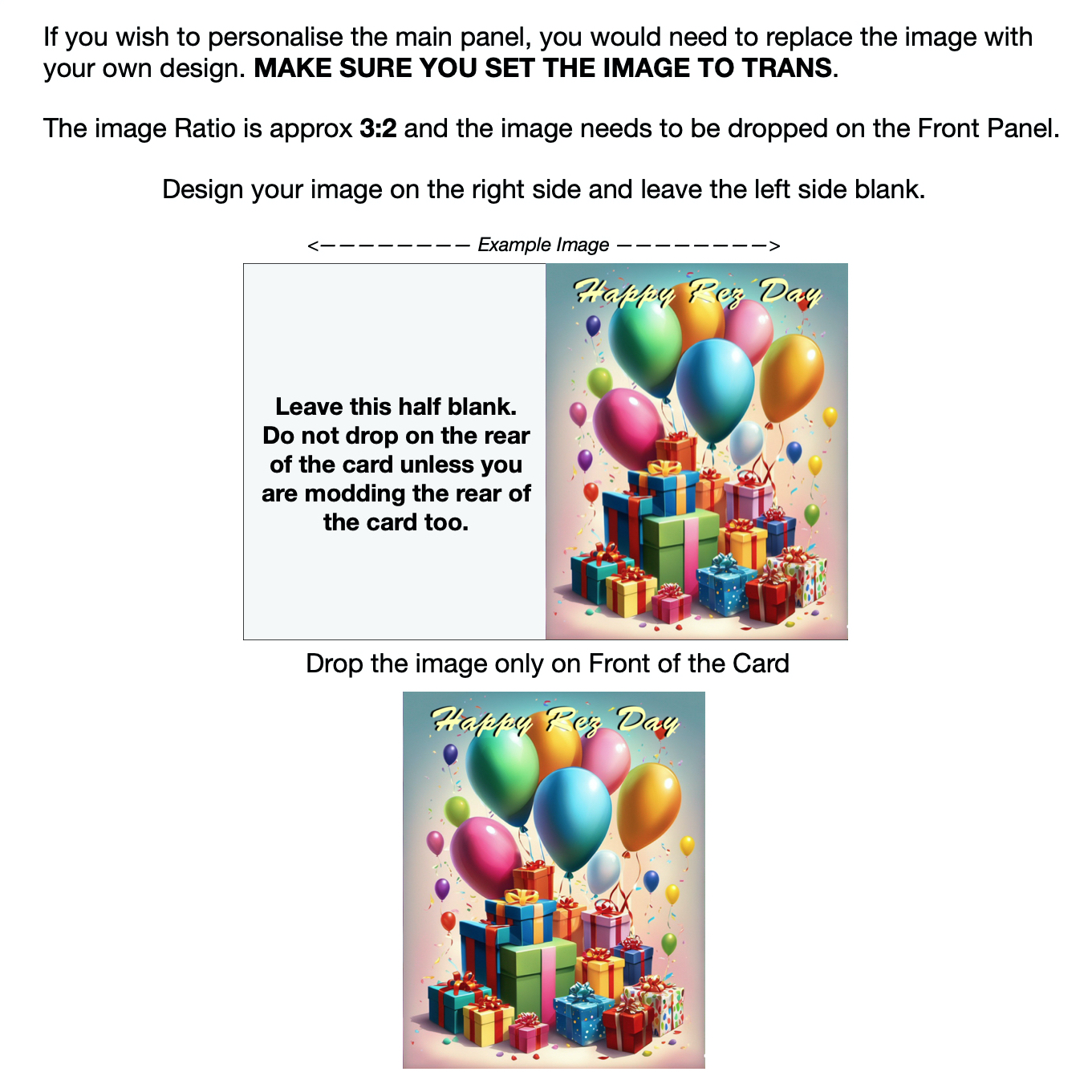
The front panel is also includes the back panel with the ratio of 4:3.
If you wish to change the image on the front of the card, your image needs to be on the same scale as the diagram above.
This panel is using 50% of the full image and you only need to work on Panel B, leave Panel A blank. (see the How to Mod Front Panel image)
If you mess up I may at my discretion replace the card in exchange for the original. Please try not to do that :)
“Real knowledge is to know the extent of one's ignorance."
Confucius
Copyright © 2026- - Diorama Magic - All Rights Reserved